Add a hook and text
The Text tool places a hook at the top of the clip, free text wherever you want, and the live chat.
The hook#
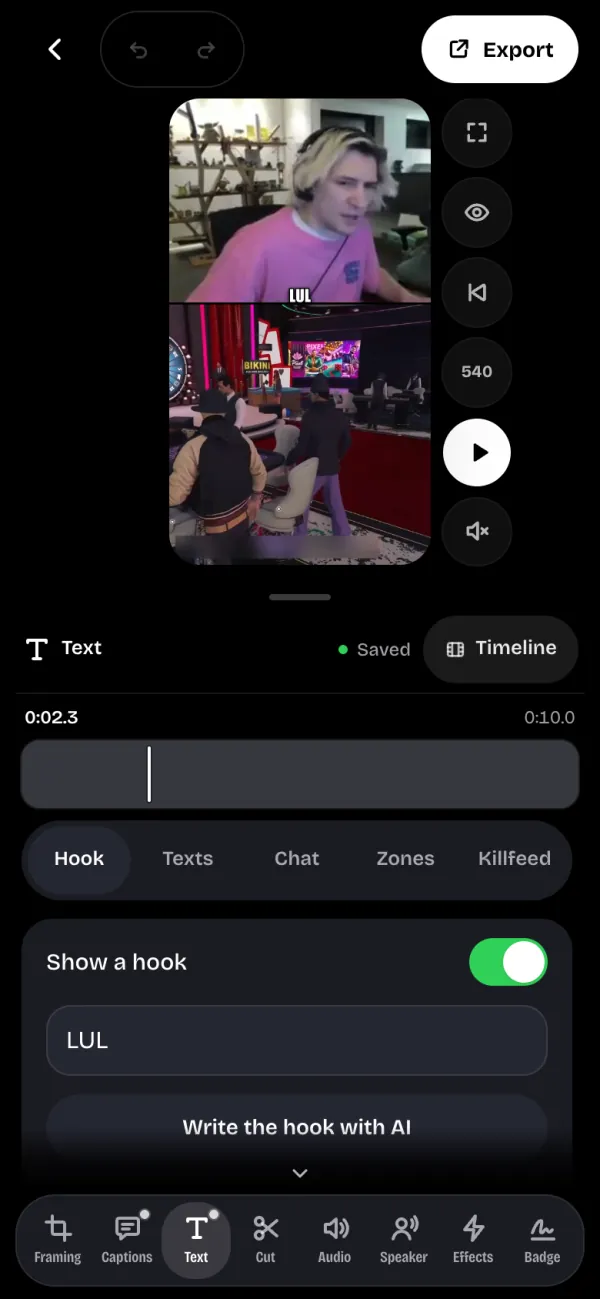
- In the Text tool, open the Hook tab.
- Turn on Show a hook.
- Type your text, or tap Write the hook with AI.
- Five styles: Impact, Outline, Marker, Editorial and Pill.
- The hook stays on screen for the Whole clip, or only 3s or 5s.
- Drag the hook on the preview to place it. A double-click puts it back.
Free text#
- Open the Texts tab.
- Type in Text or emoji.
- Tap Add at the playhead: the text shows up at the current moment.
- Style: Plain, Outline, Box, Highlight, Shout, Serif or 3D.
- Entrance: None, Pop, Rise, Fade, Spring, Slide, Zoom or Wipe. Every text fades out.
- Size and display time are set with the sliders.
- Each style and entrance shows its effect in a loop before you touch it.
Touch the text on the preview to grab it, then drag to place it. Delete this text removes it.
A text is 60 characters at most, and a clip can carry 12 of them.
The live chat#
In the Chat tab, turn on Live chat to show the real Twitch chat messages during the clip.
Chat replay only exists for Twitch clips opened from their link. If the VOD was deleted or is subscriber-only, Twitch no longer keeps the chat and it is gone.