The studio and your projects
The studio is the app's home page: you open a clip, resume a project and find your Twitch clips there.
Your projects#
Under My projects, the studio keeps the clips you are working on. Each project carries a Draft or Exported badge. Open one to resume where you left off.
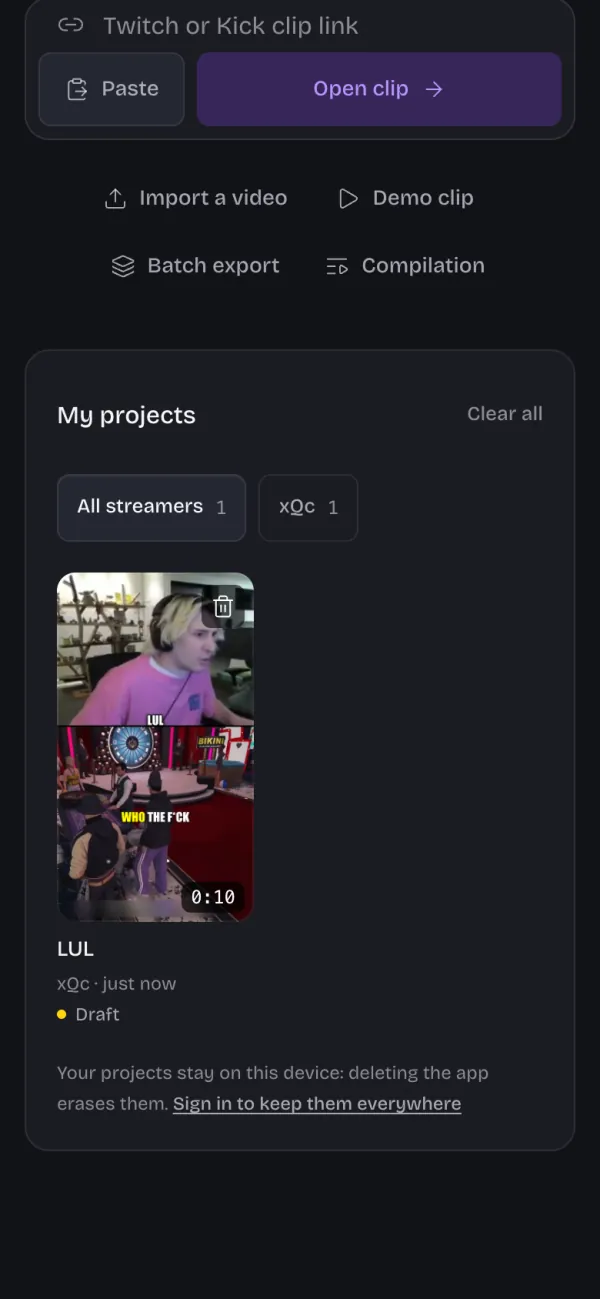
- Filter by streamer keeps only one streamer's projects.
- Delete? asks for confirmation before erasing a project.
- Clear all empties the list, after a second tap on Confirm clear all.
If a project's video is no longer on the device, tap Import a video file and pick it again from your camera roll: your settings and captions come back with it.
My clips and Created clips#
Tap Connect Twitch to find all the clips of your channel here, including your viewers' clips, and open them in one tap. Created clips shows the ones you made, on your channel and on others'.
Pick the period with Clips from: 7 days, 30 days or All time. The studio only reads your public clips and your channel name.