Add captions
The Captions tool transcribes the clip's voice and shows the words one by one, karaoke style, on the video.
Generate the captions#
- Open the Captions tool and turn captions on.
- In the Text tab, pick the language spoken in the clip: French or English.
- Tap Transcribe the voice.
With a subscription, transcription is sharper and tells voices apart. Without one, it runs in your browser (about 80 MB downloaded once).
Fix a line#
Tap a line to fix it. Each line keeps its moment in the clip: only the words change.
Pick the style#
In the Style tab, pick one of seven styles: Classic, Bold, Clean, Box, Zoom, Marker or Neon. Also set the Word color: Gold, Purple, Cyan, Green or Red.
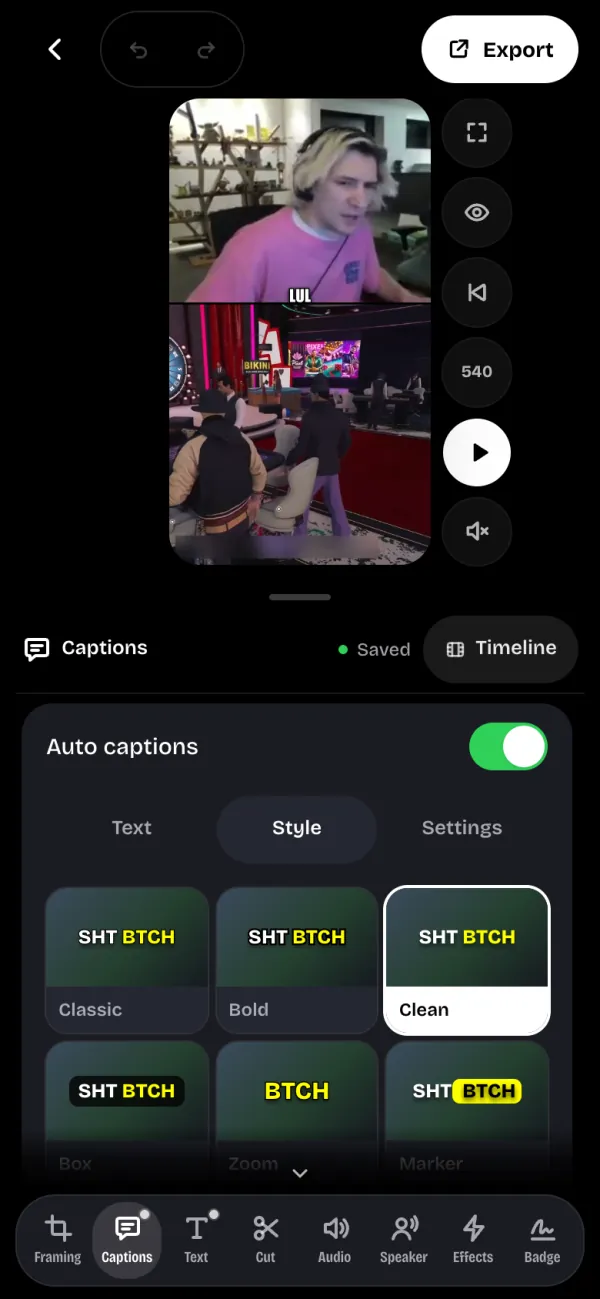
Drag the captions on the preview to place them. A double-click puts them back to their automatic spot.
The settings#
- Hide swear words (f*ck) is on by default: TikTok, Reels and Shorts can push down videos with swear words on screen.
- One color per voice shows up when several voices are recognized. Tap a line to give it to another voice.
Translate the captions#
With Pro, a button translates the captions with AI between French and English. Then Show the translation replaces the original, and the bilingual option keeps both on screen.
Back to the clip language brings back the original captions.