Export a clip
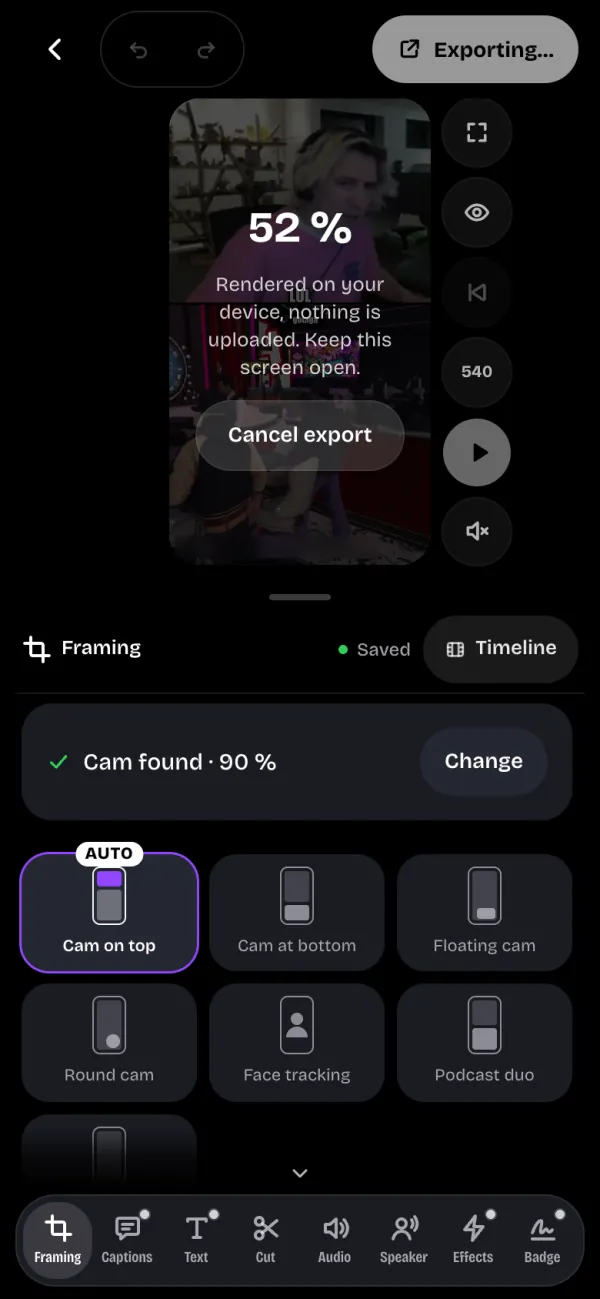
Tap Export: the studio renders your clip in 9:16 right on your device, with no render server and no queue.
Quality and watermark#
- With no plan: a 720p export with the StreamPulse watermark, which moves from corner to corner during the video.
- With the Standard plan: no watermark, 720p.
- With Pro: no watermark, 1080p.
- The 3-day free trial removes the watermark.
While it renders#
- Keep the screen open during the export. The studio also asks your browser to keep the screen on.
- Tap Cancel export to stop it.
- If the studio says exporting isn't possible, use Chrome, Edge or Safari 17+ on a computer.
Where the file goes#
- On a computer: tap Download the MP4 and your browser downloads the file.
- On a phone or tablet that can share files: Save to gallery opens the device's share sheet, where you save the video or send it to an app.
- Another clip takes you back to the studio to start a new one.
Then send the video to TikTok, Reels or Shorts.