Cut a clip
The Cut tool splits the clip into parts you can remove or speed up, by hand or in one tap.
Start and end#
Start and End set the bounds of the clip. The time kept shows on the timeline.
Cut and remove a part#
- Place the playhead, then tap Cut.
- Tap a part to select it.
- Tap Remove this part, or change its Speed.
Bring this part back restores it, and Remove the split joins two parts again.
Tighten the clip#
Tighten the clip finds silences, hesitations, stretched words and failed takes. Tap Find what to cut: you see the time you save before anything is cut. Then Cut them.
One-tap edit goes further: it cuts the silences, zooms on laughs and screams, and picks the transition between cuts. Pick the Intensity (Subtle, Balanced or Punchy), then Edit for me.
Undo brings it all back, cuts and zooms included.
The transition between cuts#
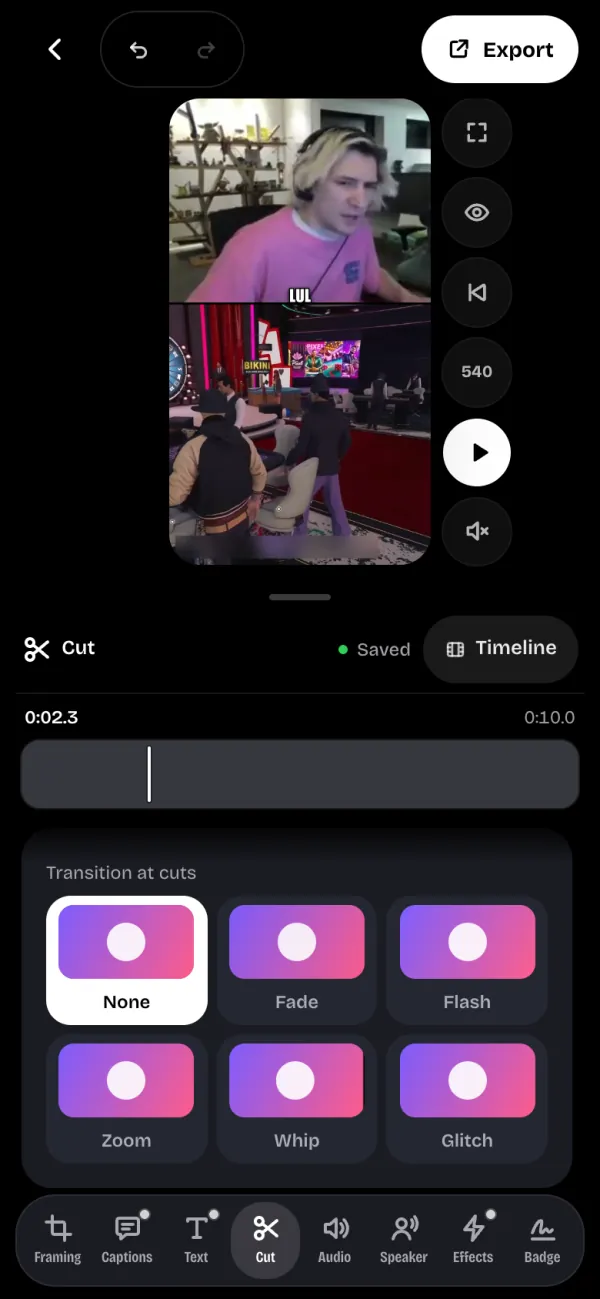
Transition at cuts applies wherever a part was removed: None, Fade, Flash, Zoom, Whip or Glitch. Each tile shows the effect in a loop before you touch it.
Freezing the frame#
Freeze frame holds the picture at the playhead, without sound, to stress a moment or a reaction. Pick the pause length (0.5, 1, 2 or 3 s): each tile shows the pause in a loop. Place the playhead, then tap Freeze the frame at followed by the time.
Freezes add to the length of the exported video and appear under Freezes in place, where you can remove each one. A freeze isn't possible inside a removed part, and you can place eight at most.